

Monitoring alerts
Set your own monitoring alerts on the pages you watch in Curade Mini, ready made or custom, checked on a schedule even while the app is closed.
On this page
Monitoring alerts tell you when something you care about crosses a line you set: a critical problem opens, a host stays above 80% CPU for 10 minutes, an application's Apdex drops. The checks run on Core Consulting's side every few minutes, so alerts reach you as push notifications even with the app closed, and land in the Alerts tab of your notification inbox.

Alerts are personal. You set your own in each environment, and nobody else receives or sees them. They run only in environments where Core Consulting has switched monitoring alerts on, once your organisation has agreed to them.
Where to set them
- The monitoring button, a radar at the top of the Dashboard, Problems, Applications, Services and Infrastructure pages and their detail pages, opens the alerts of the page in view. On a host, service or application page, it starts with an alert about that one item, such as Alert me about this host.
- Monitoring in the drawer gives an overview of every page you can open, what each one runs, the alerts Firing now and the snooze.
Your role decides the pages you can set alerts on: an Admin sets alerts on problems and the health score.
Ready made or custom
Each page runs one kind of alert at a time, its Ready made alerts or its Custom ones, and switching on an alert of the other kind asks first. Ready made alerts have fixed numbers: you switch on the ones you want and can narrow which items each one watches.
| Page | Ready made alerts |
|---|---|
| Problems | A new Critical problem opens; more than 3 problems are open; a problem stays open longer than 60 minutes |
| Infrastructure | CPU above 80% for 10 minutes; memory above 85% for 10 minutes; the fullest disk above 90%; a host stops reporting for 10 minutes |
| Services | Failure rate above 5% for 5 minutes, or above 3% for 15 minutes; response time above 5,000 ms for 5 minutes, each ignoring minutes with fewer than 10 requests |
| Applications | Apdex below 0.7 for 10 minutes, ignoring minutes with fewer than 10 user actions; an application stops reporting for 60 minutes |
| Dashboard | The health score below 65; 3 or more unhealthy hosts |
Duplicate as custom copies a ready made alert into the editor so you can change its numbers. You can keep up to 20 custom alerts in each environment.
Writing a custom alert
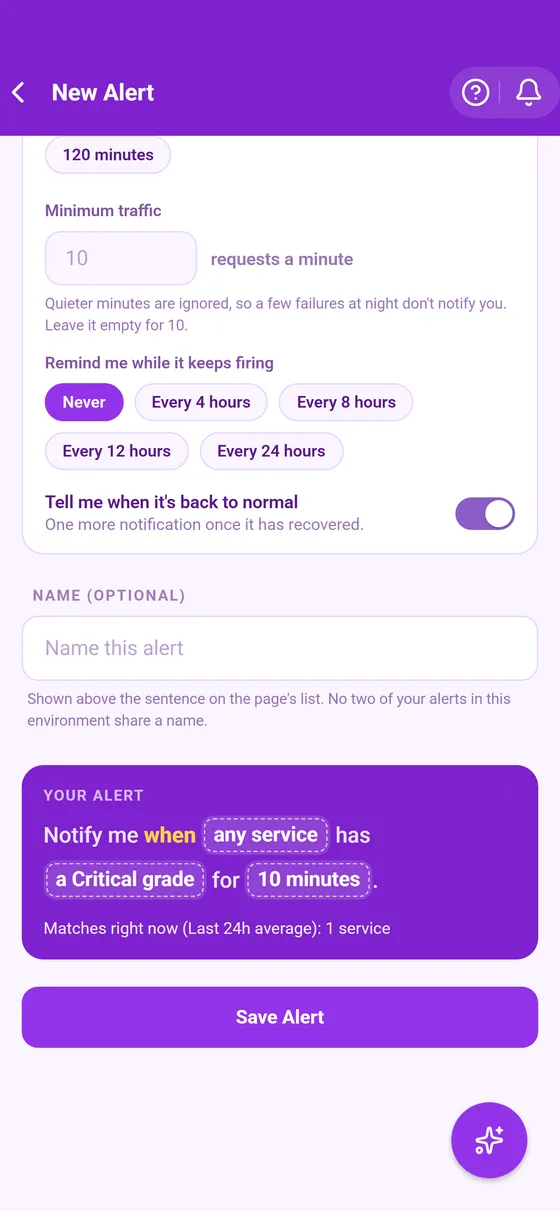
New alert opens the editor, and every alert reads as a sentence, such as "Notify me when any host in Zone A has CPU usage above 60% for 10 minutes."
- Items: every item on the page, one management zone, one tag, or up to 50 items you choose.
- Conditions: a measure, a direction and a number, up to 5. With two or more, All are true or Any is true decides how they combine.
- For how long: how long the line has to stay crossed, from Right away to 120 minutes.
- Minimum traffic: for rates and Apdex, the requests or user actions a minute needs before it counts, so a quiet minute at night never sets an alert off.
- A reminder while it keeps firing, and Tell me when it's back to normal, on unless you switch it off.
Your alert, above the save button, reads the whole alert back as one sentence before you save it. Set up an alert walks through it.
How alerts stay quiet
- An item that crosses the line notifies you once, then stays quiet while it keeps firing unless you set a reminder.
- An item recovers only once it comes back past the line by a margin, so a reading hovering on the line does not flip back and forth.
- Every item that trips an alert in one check goes into one notification, and at most 10 alert pushes an hour reach you. Anything over that still lands in the inbox.
- A new or edited alert starts from what it sees, so the first check raises nothing for it.
Snooze and settings
Snooze holds alert pushes back For 1 hour, For 4 hours or Until 9 am, on every device of your account. Alerts raised meanwhile still land in the inbox, and End snooze ends it early. In Settings, Monitoring alerts decides whether alerts push at all, and Show readings in notifications whether a push shows the items and their readings, or only a count that is safe on a lock screen.
Tapping an alert
An alert opens the page it is about, switching environment first when it needs to. The page shows a From your alert banner with what the alert said and when, and a From alert chip narrowing the list to the alert's items, each marked with the reading the alert caught. An alert's link works for 24 hours.
Sharing alerts as a file
Custom alerts travel in a file, to share them with a colleague or to set the same alerts up in another environment. Export and Import on a page's Custom tab work for that page, and Export all and Import all on Monitoring for every page. The file holds each alert's conditions, items and timing, and no account, environment or readings. An import shows every alert in the file before anything is added.
What is kept
An alert stays in the inbox's Alerts tab for 30 days, then goes by itself, and alerts are never emailed. To compare each check with the one before, Core Consulting's side keeps only the latest check of each page an alert watches, encrypted and replaced at every check, and a record of when each check ran and how it went for 7 days.
Alerts are a help, not a guarantee. The checks run on a schedule, and an alert can arrive late or not at all, since the schedule, your phone and its settings, the push services and the monitoring platform all play a part. They never replace your organisation's own incident alerting.
This page describes Curade Mini 1.0.0.